If you’re stuck with MAMP (or MAMP Pro) unable to use the default Apache and MySQL ports (Port 80 and Port 3306 respectively) when you change them in preferences, use the following steps to ensure that the changes you make are saved and work:
- Launch MAMP. Open Terminal by typing terminal into Spotlight (
Command + Space). - Open MAMP Preferences (
Command + ,) and click on Reset MAMP Ports (Port 8888andPort 8889for Apache and MySQL respectively). Click on OK. - Switch to the terminal. Type
sudo apachectl stopto shutdown the system Apache. - Restart MAMP.
- Open MAMP Preferences once again and click on Set to Default Apache and MySQL ports. This will set the Apache and MySQL ports to 80 and 3306 respectively.
- Switch to the terminal. Type
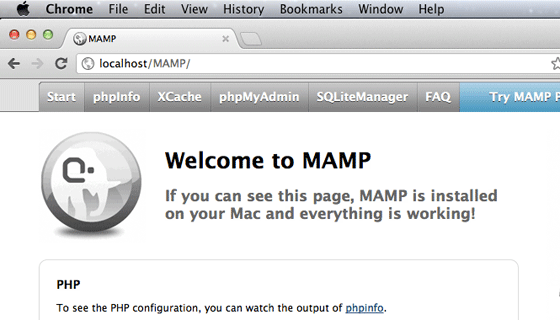
sudo apachectl restartto restart Apache. - Switch back to MAMP and click on Open Start Page (or go to http://localhost/MAMP/?language=English in your browser)
And you’re done.
By using Port 80 for Apache HTTP server, instead of having a URL like http://localhost:8888 you’ll have a clean URL like http://localhost
This is useful in certain cases, for example WordPress multi-site installation where you cannot create a network if “WordPress address (URL)” uses a port number other than ‘:80’, ‘:443’.
Setting preferences in MAMP usually works without a hassle but I encountered this problem, today morning. Only the default MAMP ports seemed to work, no matter what I set in the preferences. This led to a lot of wasted time and productivity. I hope this how-to guide saves you some hair and valuable time.